Google Ads Integration with TRUE Pulse
Upload call conversions to Google Ads automatically and measure campaign performance with complete accuracy.
Watch Setup Video
Google Ads Integration Walkthrough
Step 1: Open Google Ads Integration
- Go to Integrations in the left navigation menu.
- Select Google Ads.
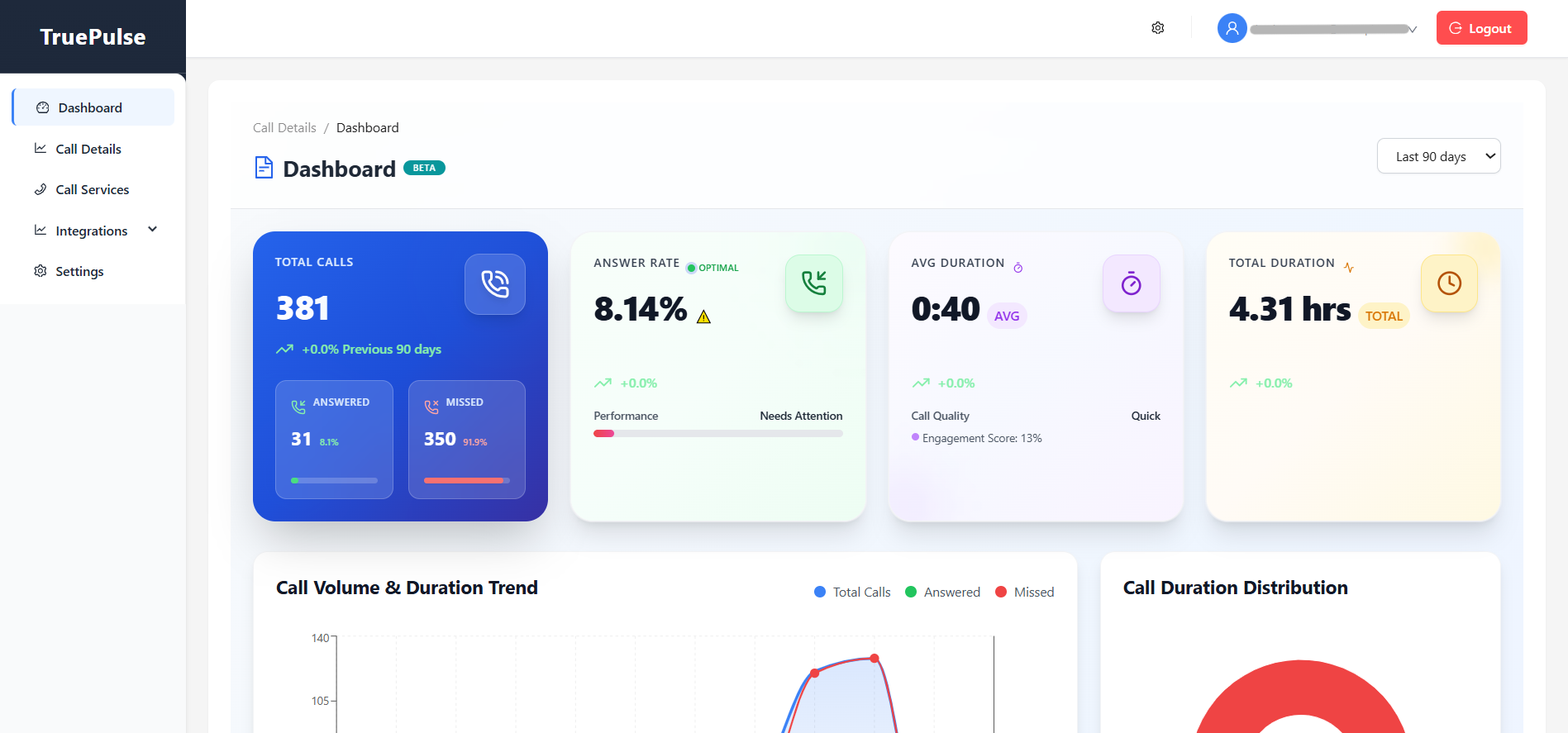
Step 2: Connect Gmail Account
- Click Connect.
- Choose the Gmail account that owns the Google Ads account.
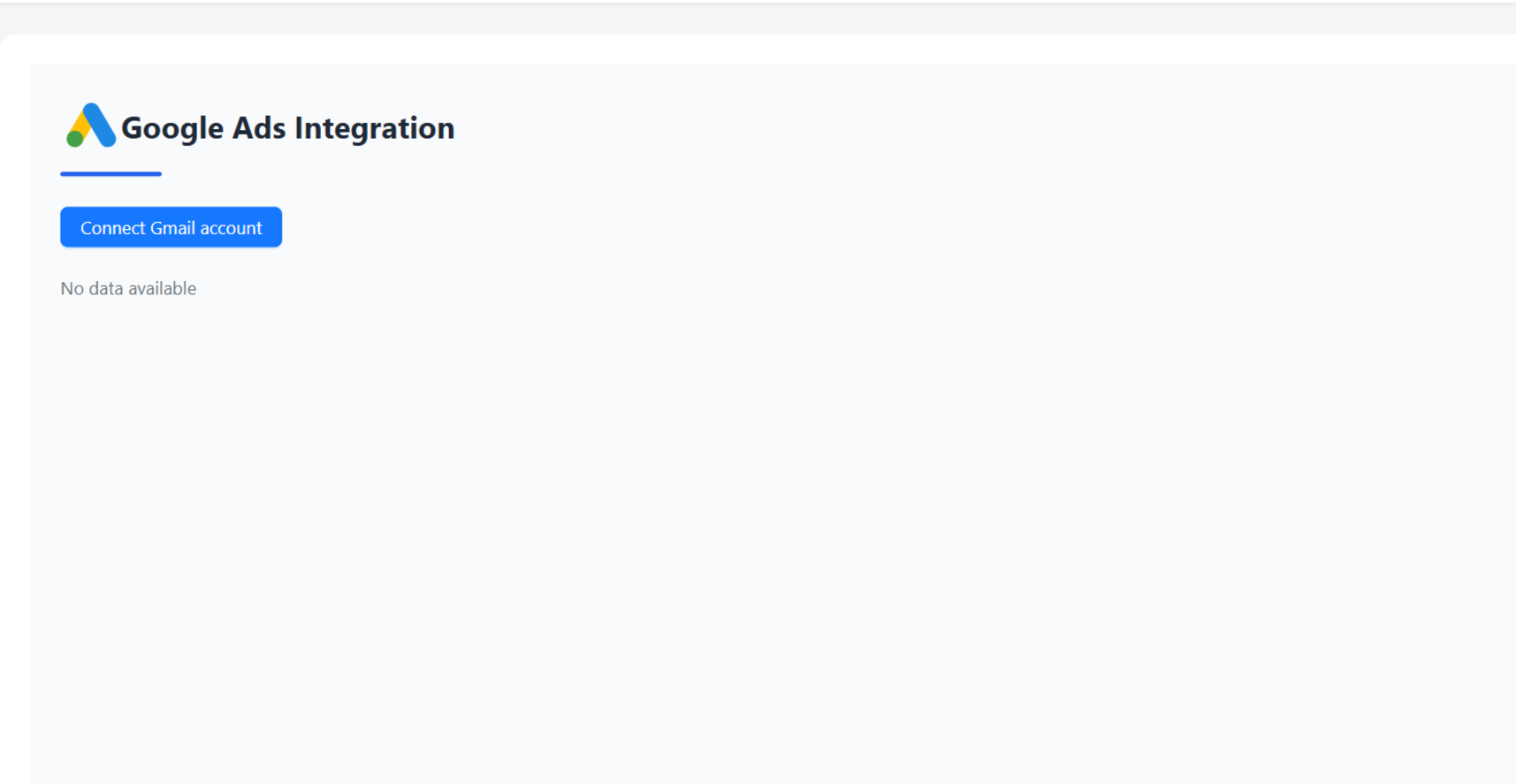
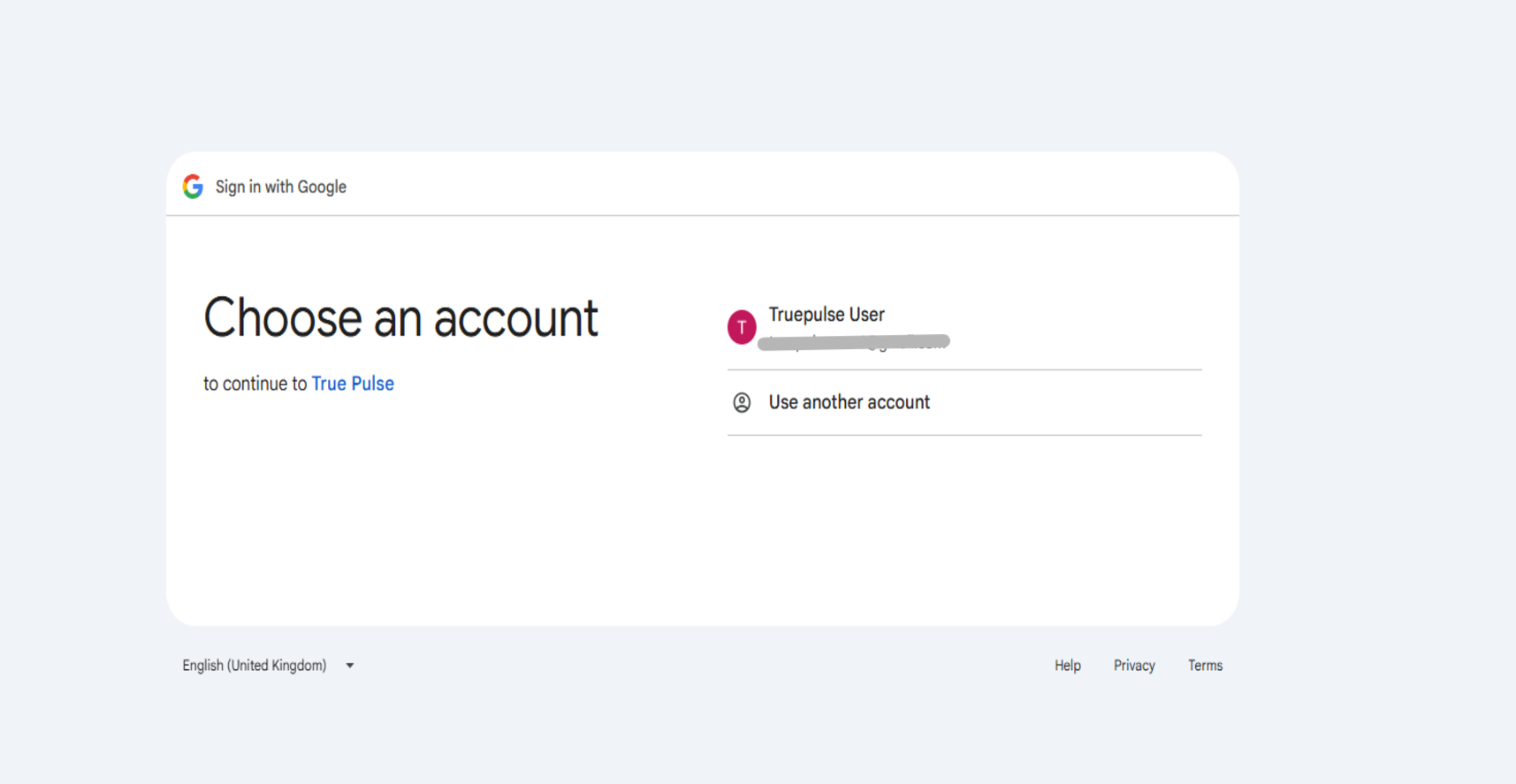
Step 3: Authorize Access
- Click Authorize to allow True Pulse to send conversions.
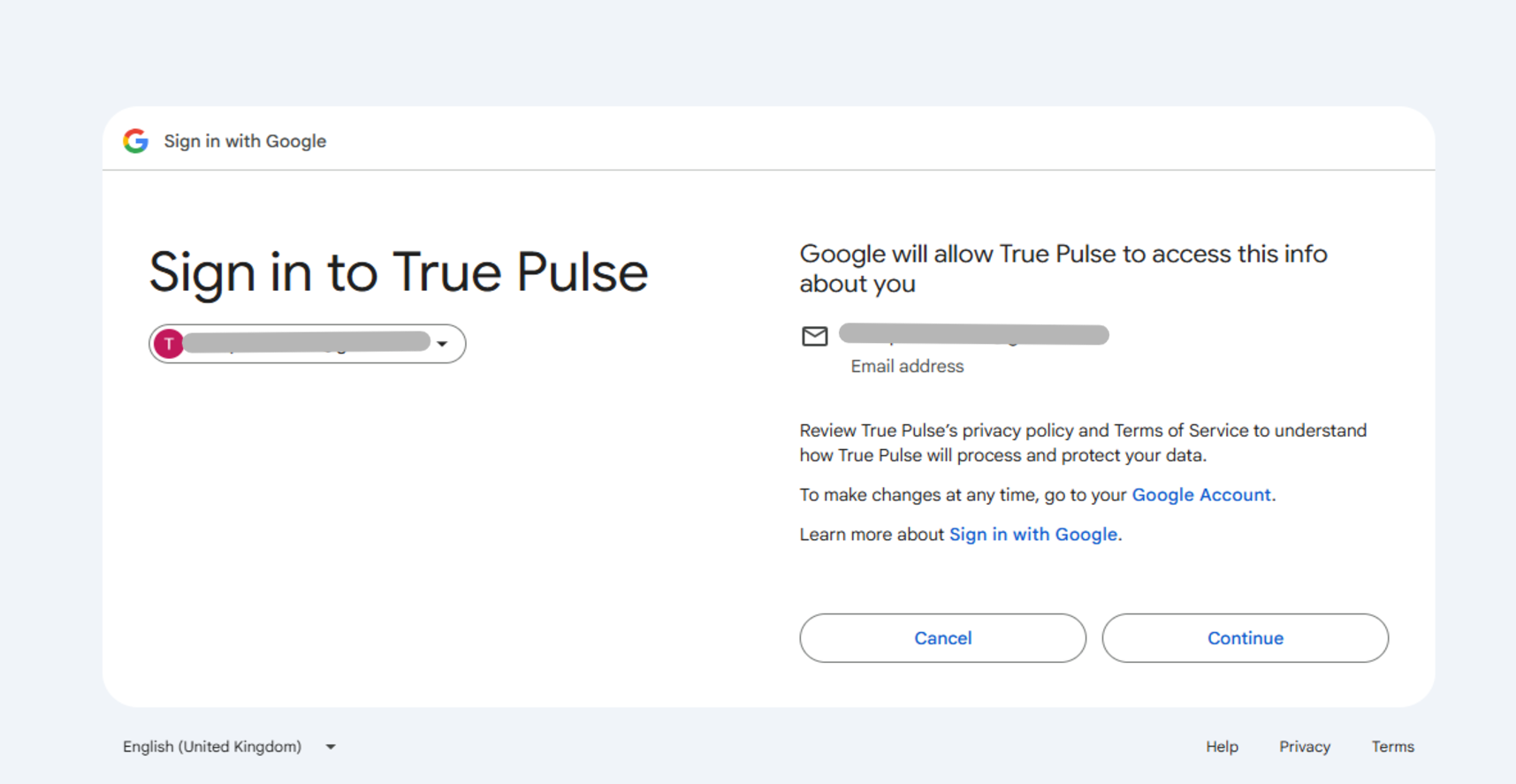
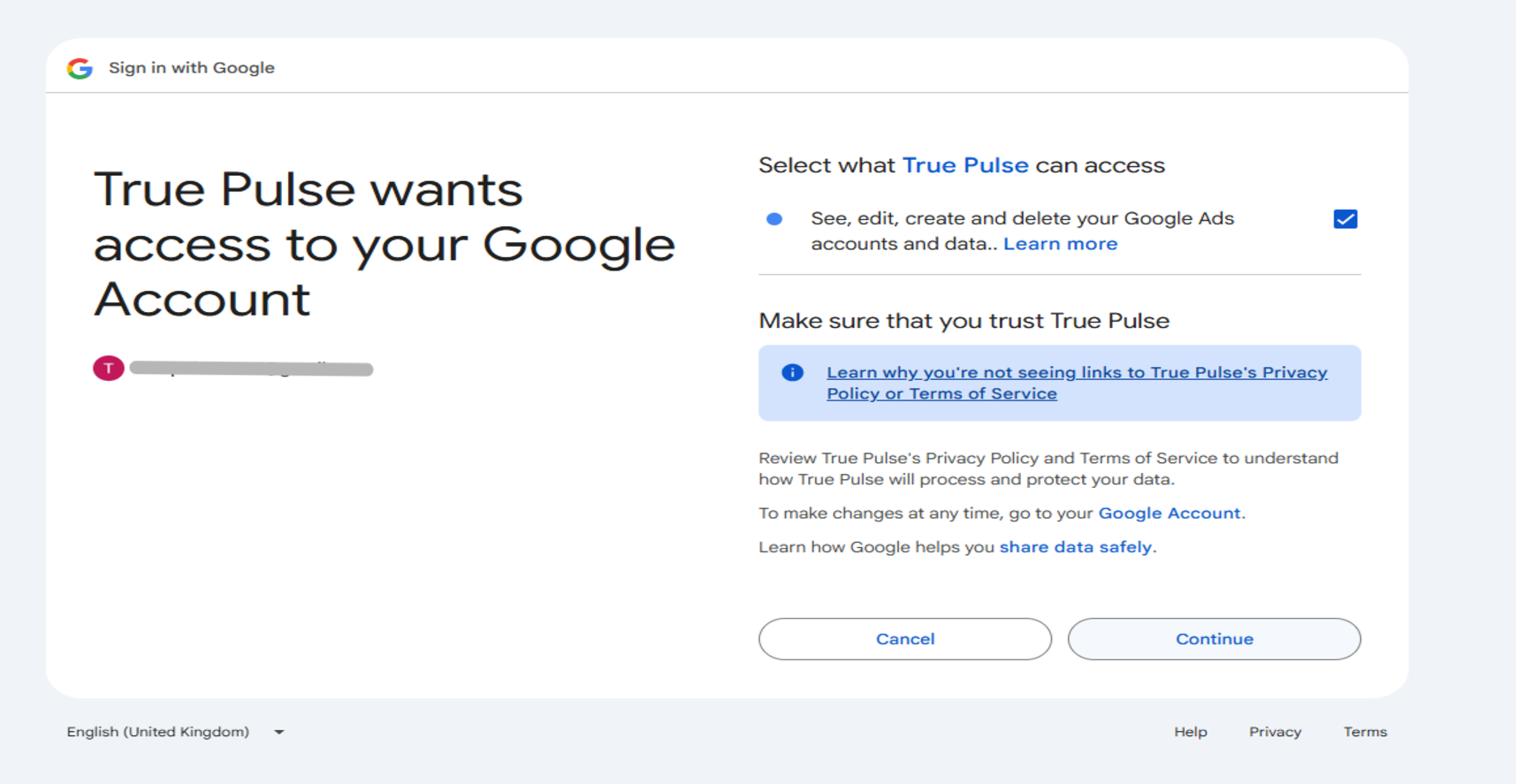
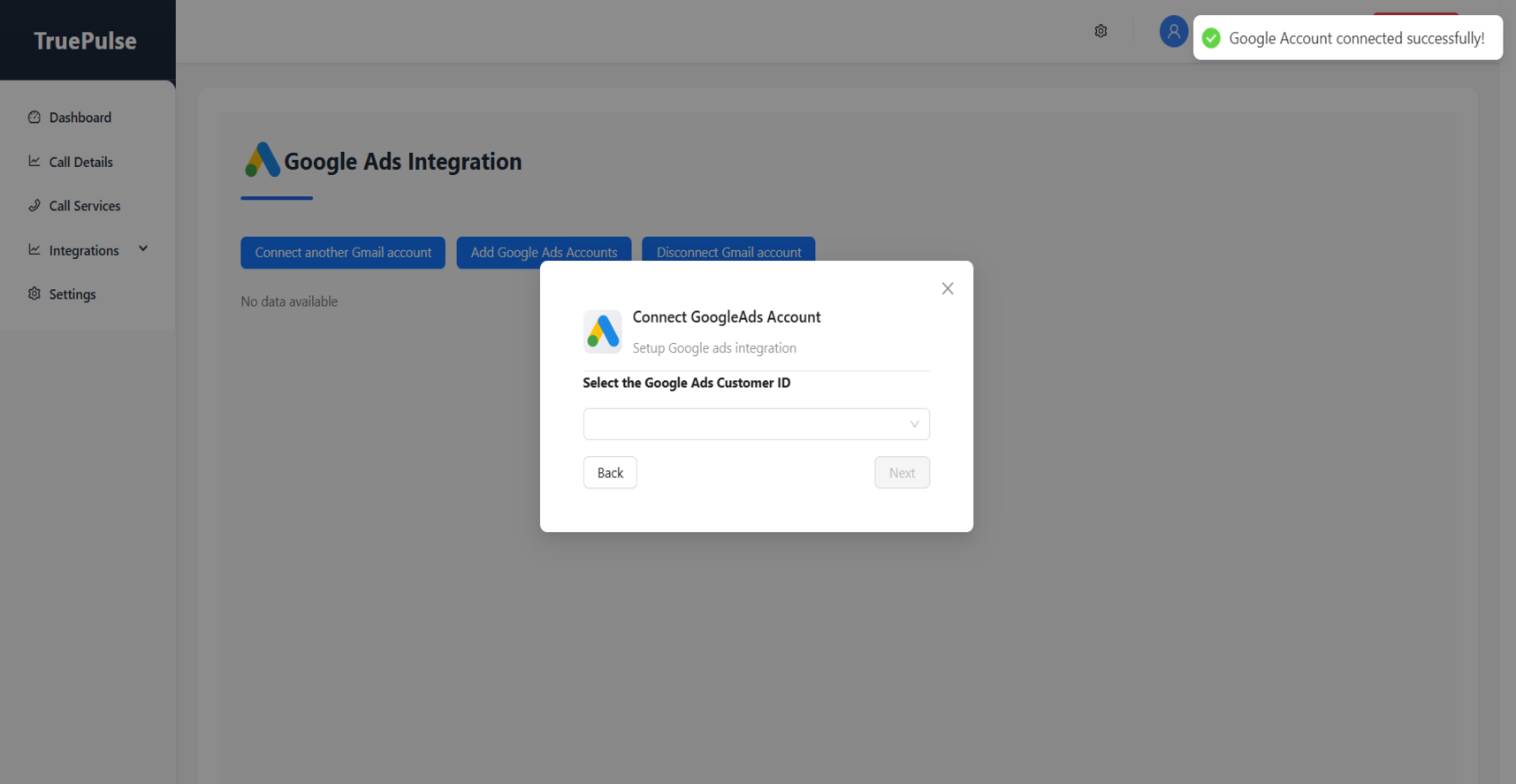
Step 4: Select Google Ads Account
- You will be redirected back to True Pulse.
- Select the Google Ads account linked to the Gmail.
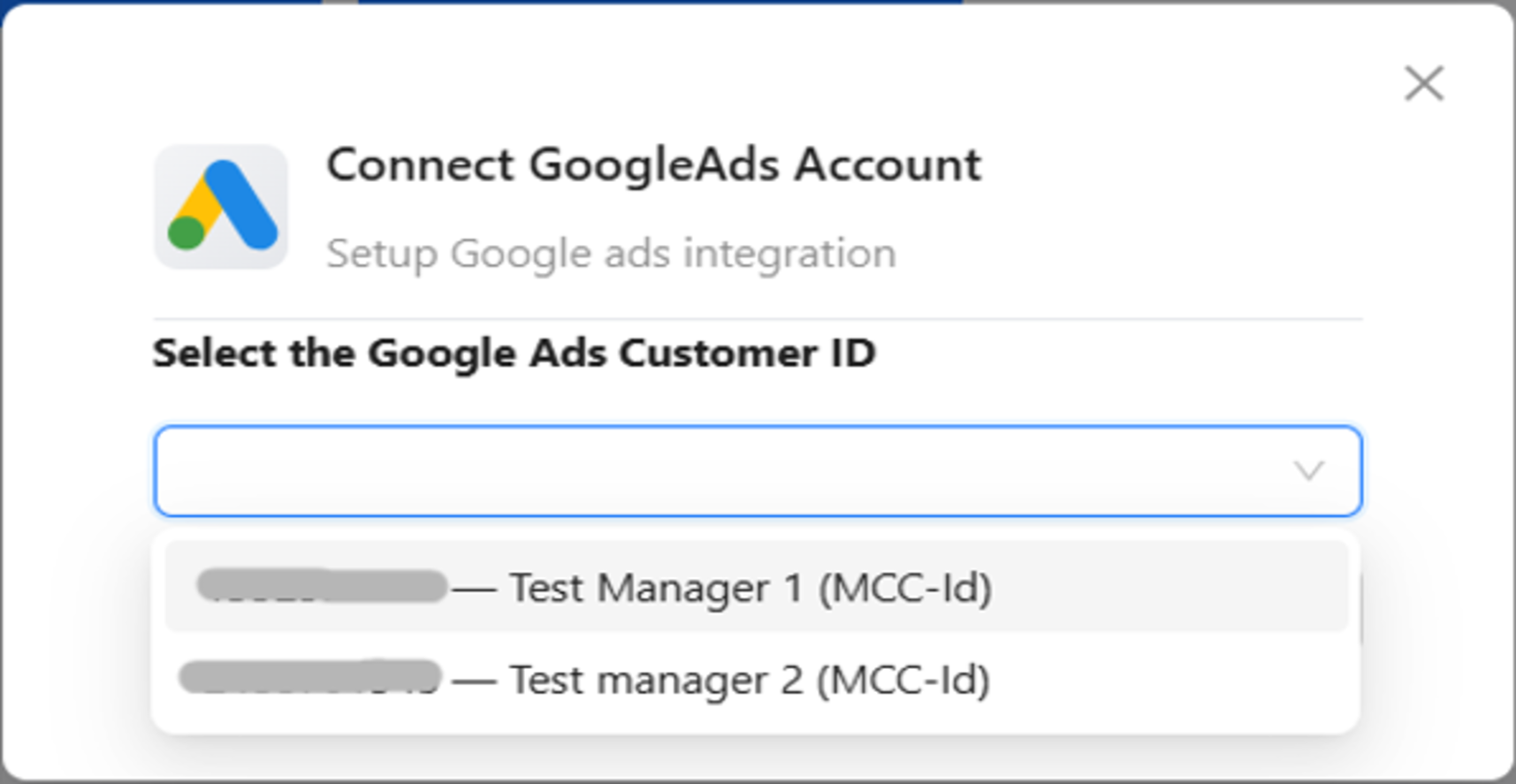
Step 5: Reopen Account Selection (If Closed)
- Click Add Google Ads Account.
- Select Gmail → Click Next.
- Choose an Ads account or MCC sub-account.
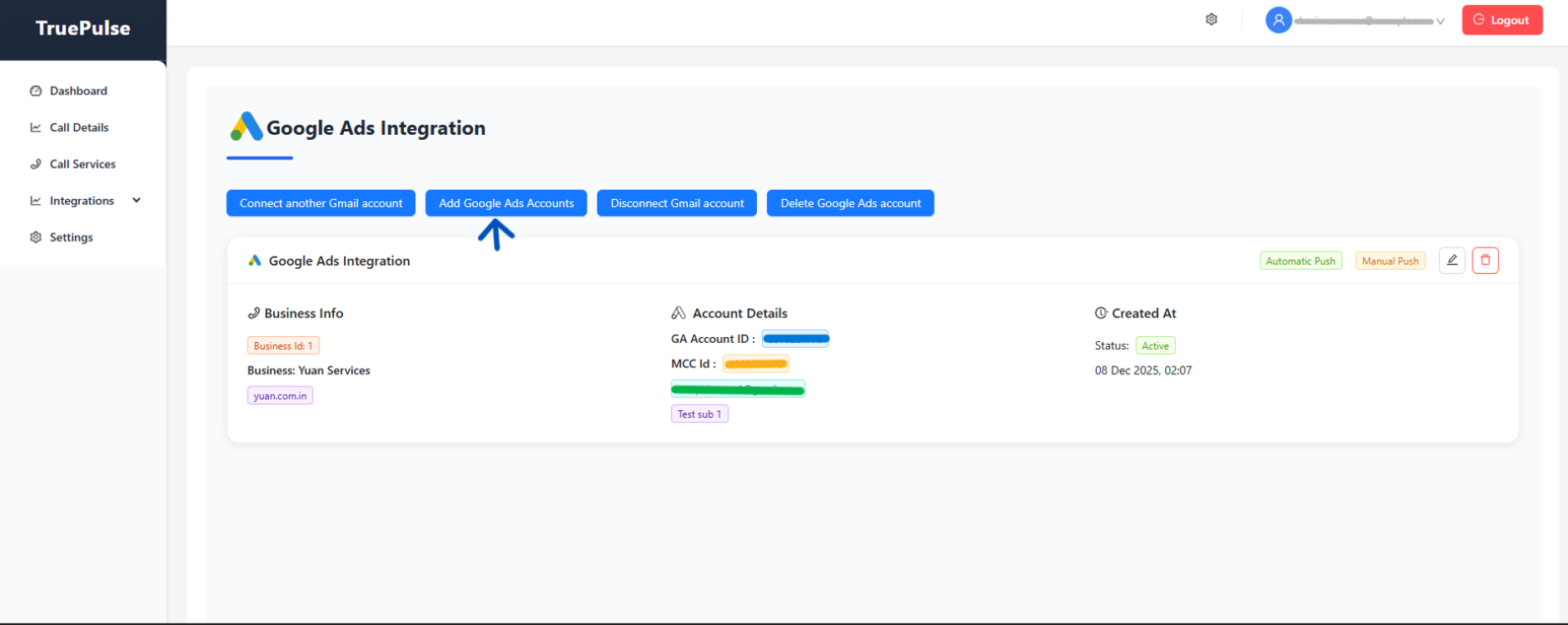
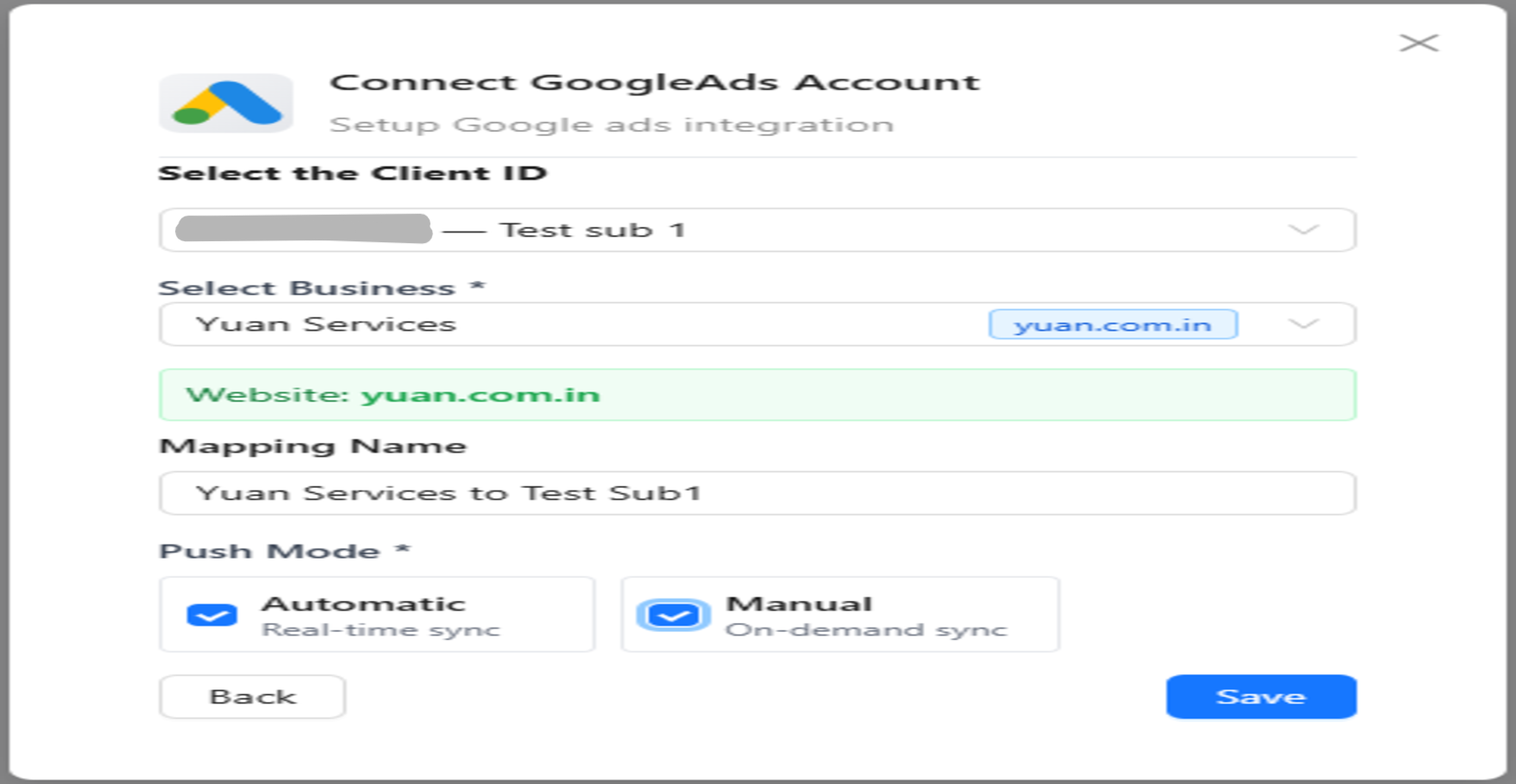
Step 6: Create Mapping
- Select the Service / Business.
- Name the mapping.
- Choose Automatic or Manual push mode.
- Click Save.
Important Information
- TRUE Pulse creates a required Conversion Action in Google Ads.
- Do not rename, delete, or modify this Conversion Action.
- Deleting a mapping stops conversion uploads immediately.
- Disconnecting Gmail removes all linked Google Ads mappings.
Start Uploading Google Ads Conversions
Measure true ROI with call-based conversion tracking.
Go to Integrations