Google Analytics Integration with TRUE Pulse
Connect TRUE Pulse with Google Analytics to push call data, track conversions accurately, and gain deeper marketing insights.
Watch Setup Video
Watch the Google Analytics Integration
Learn how to connect TRUE Pulse with Google Analytics and start pushing call data in minutes.
Google Analytics Integration Guide
Follow the steps below to connect TRUE Pulse with your Google Analytics property.
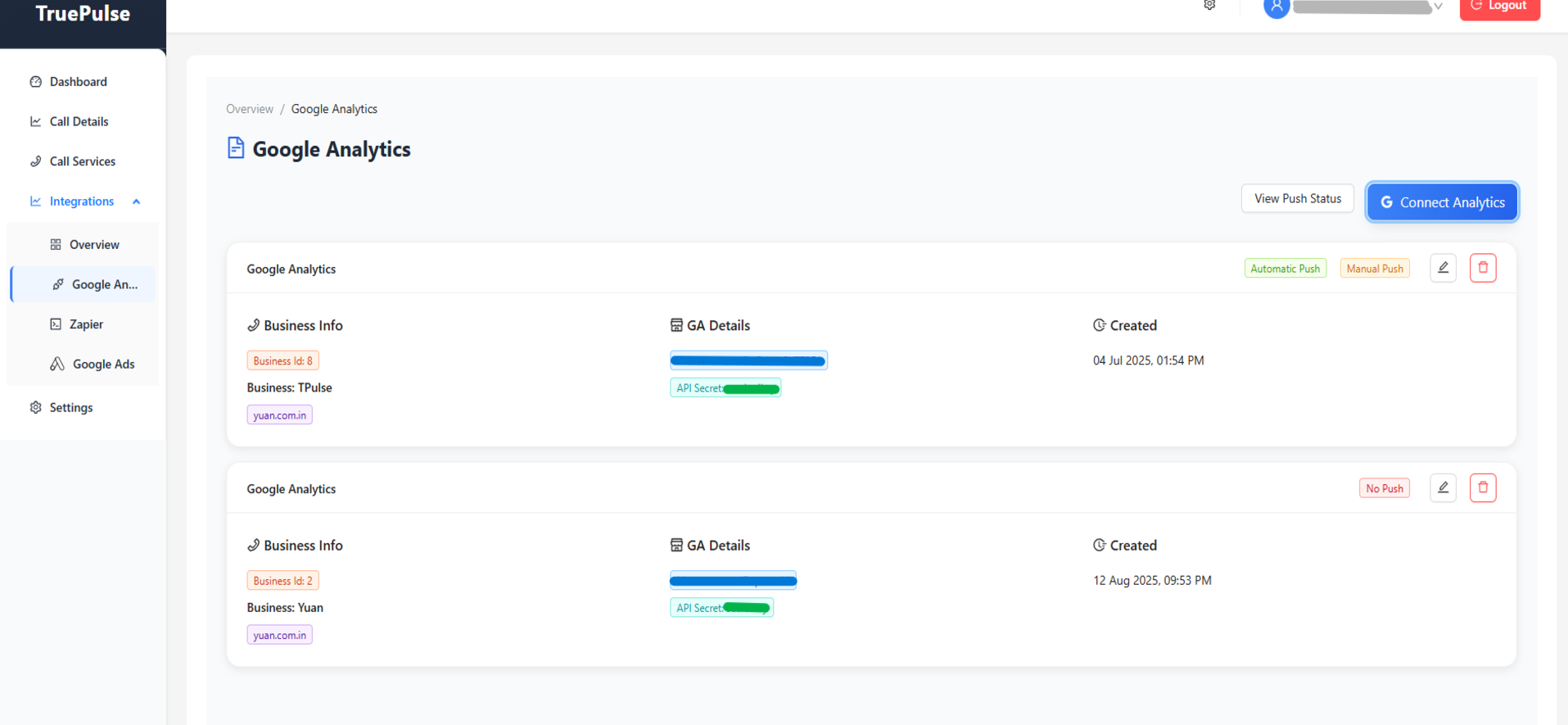
Step 1: Open Google Analytics Integration
- Go to Integrations in the left navigation menu.
- Select Google Analytics.
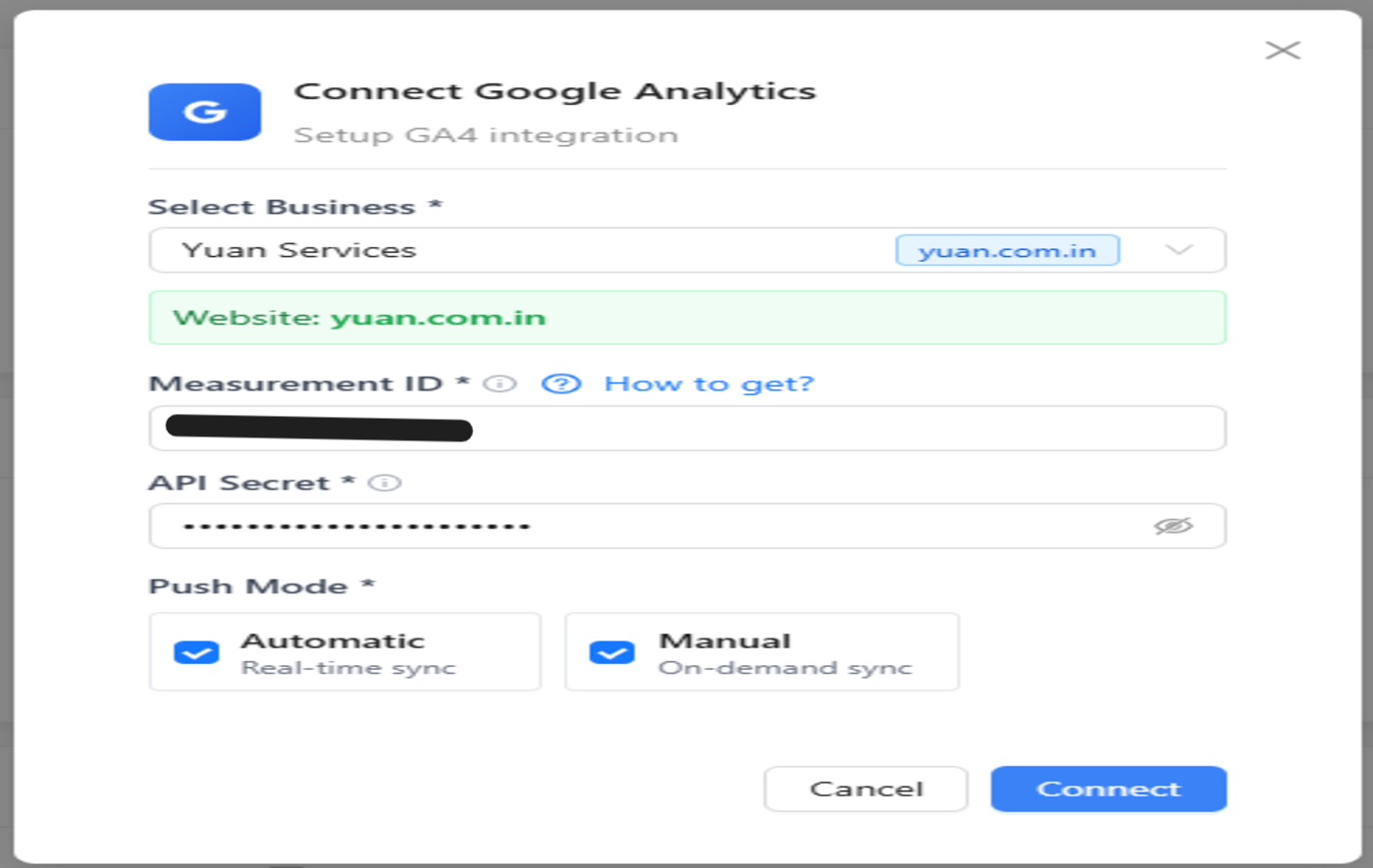
Step 2: Connect Your Google Analytics Account
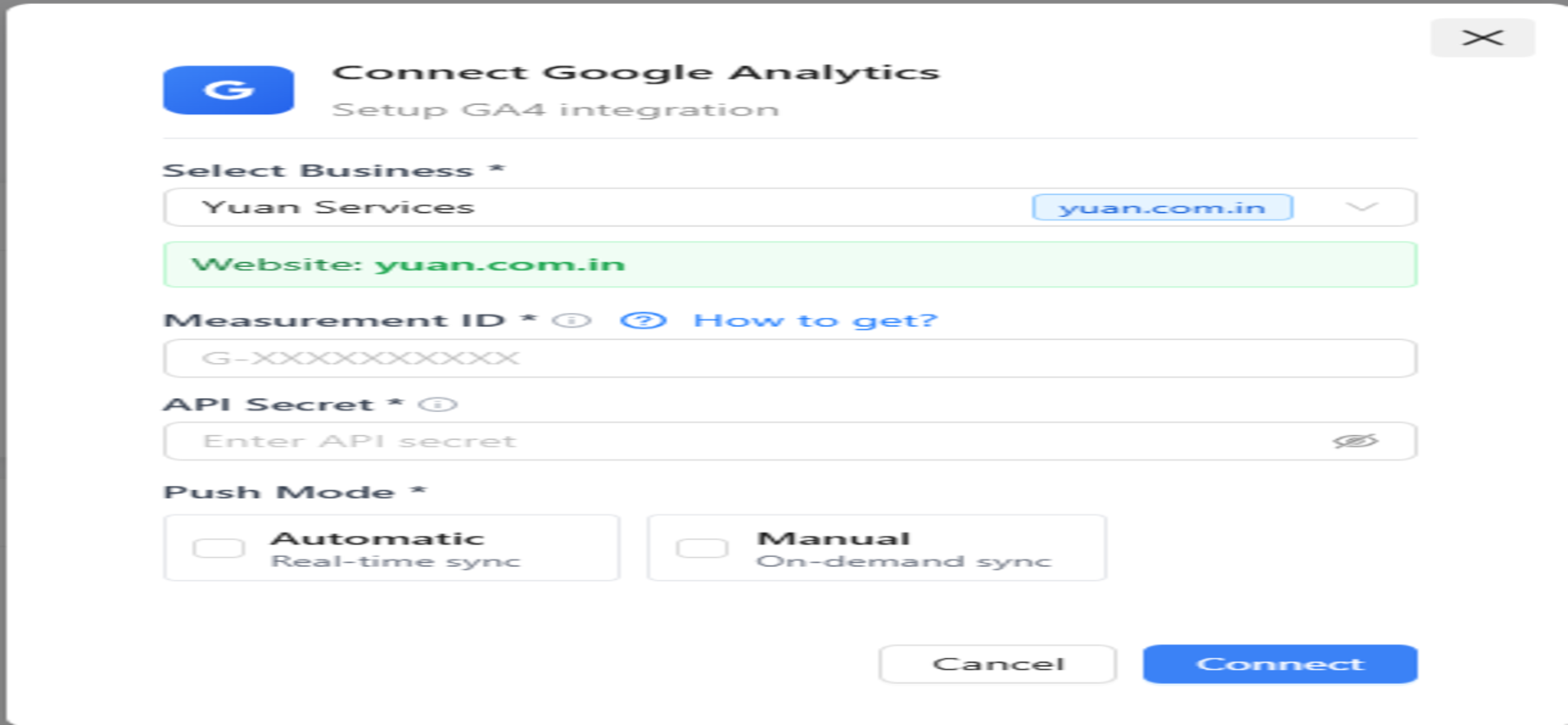
- Click Connect.
- Select the Service linked to your website.
- Enter your Measurement ID and API Secret.
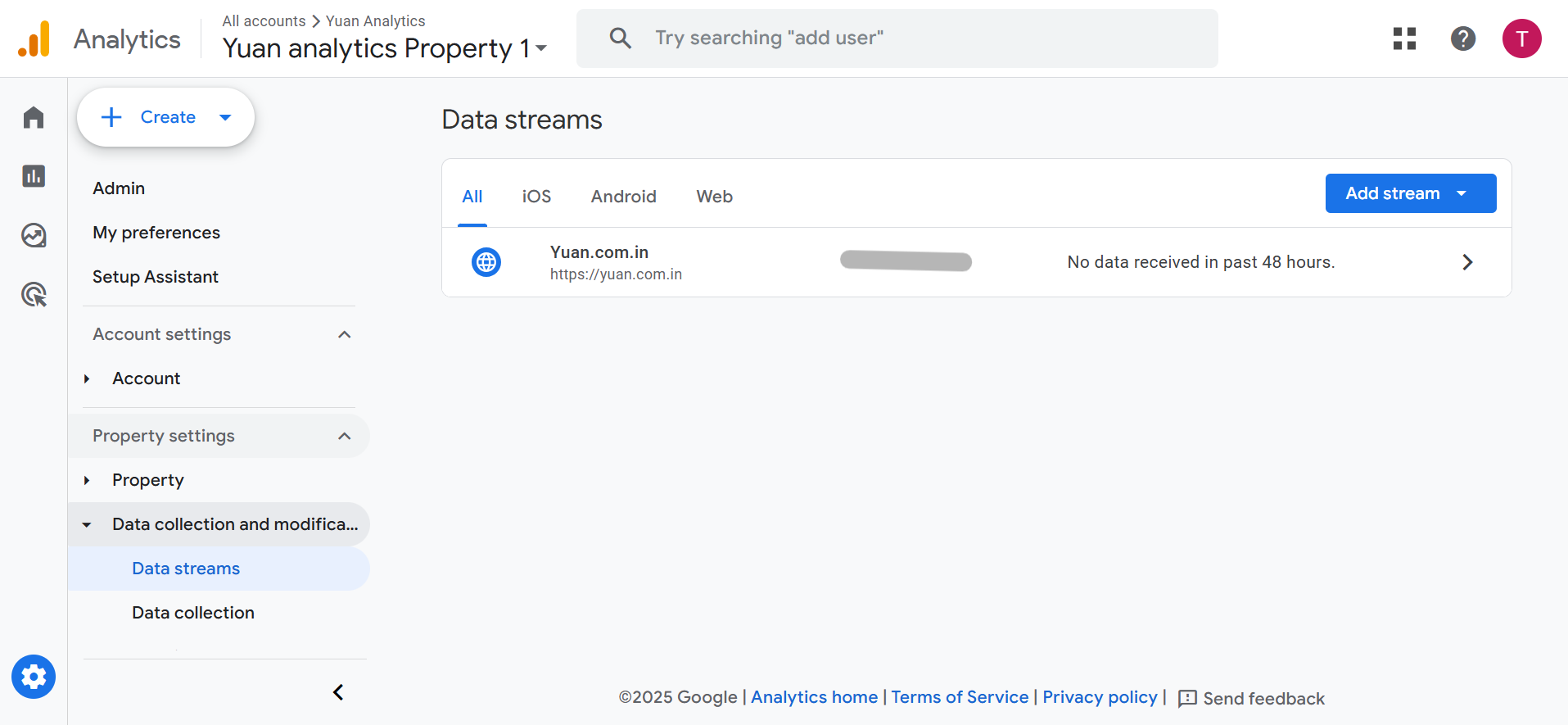
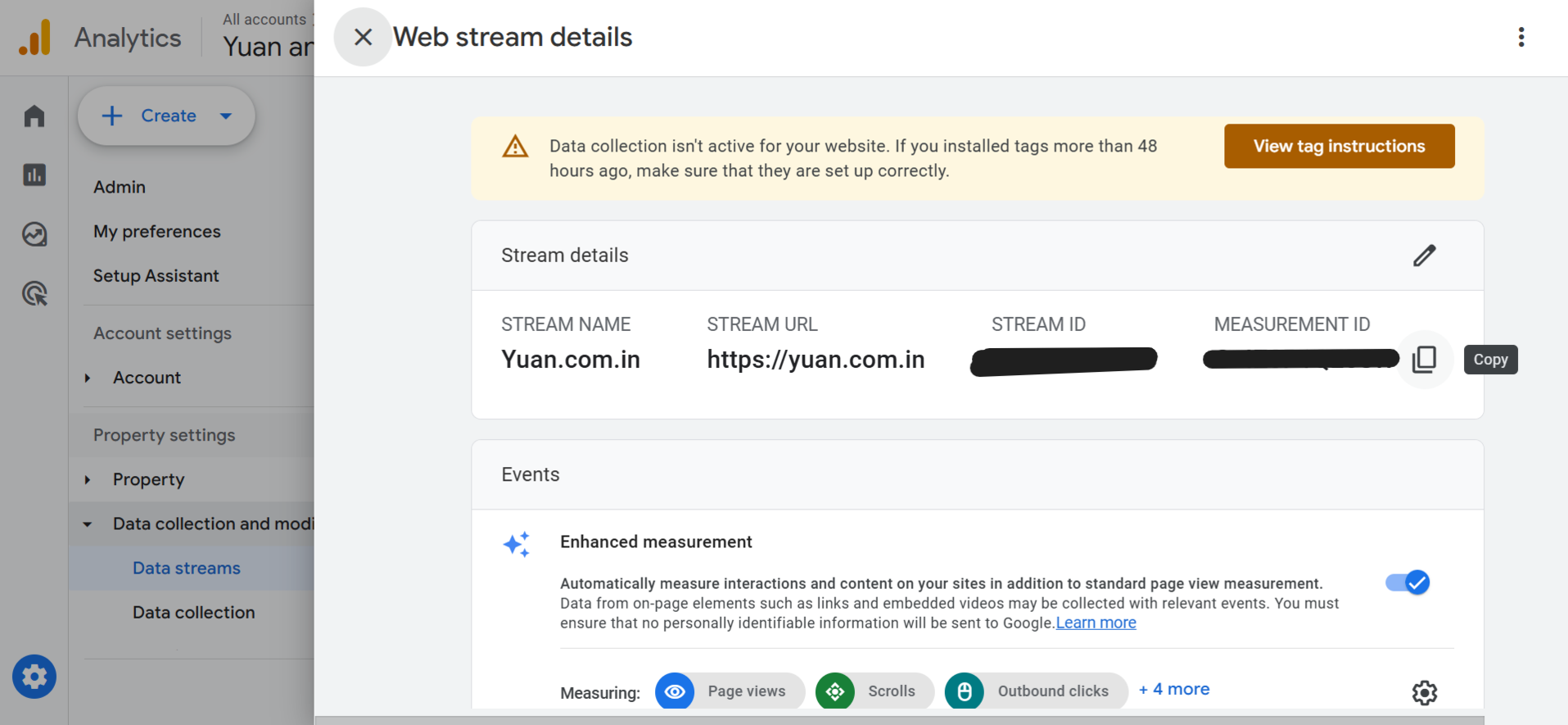
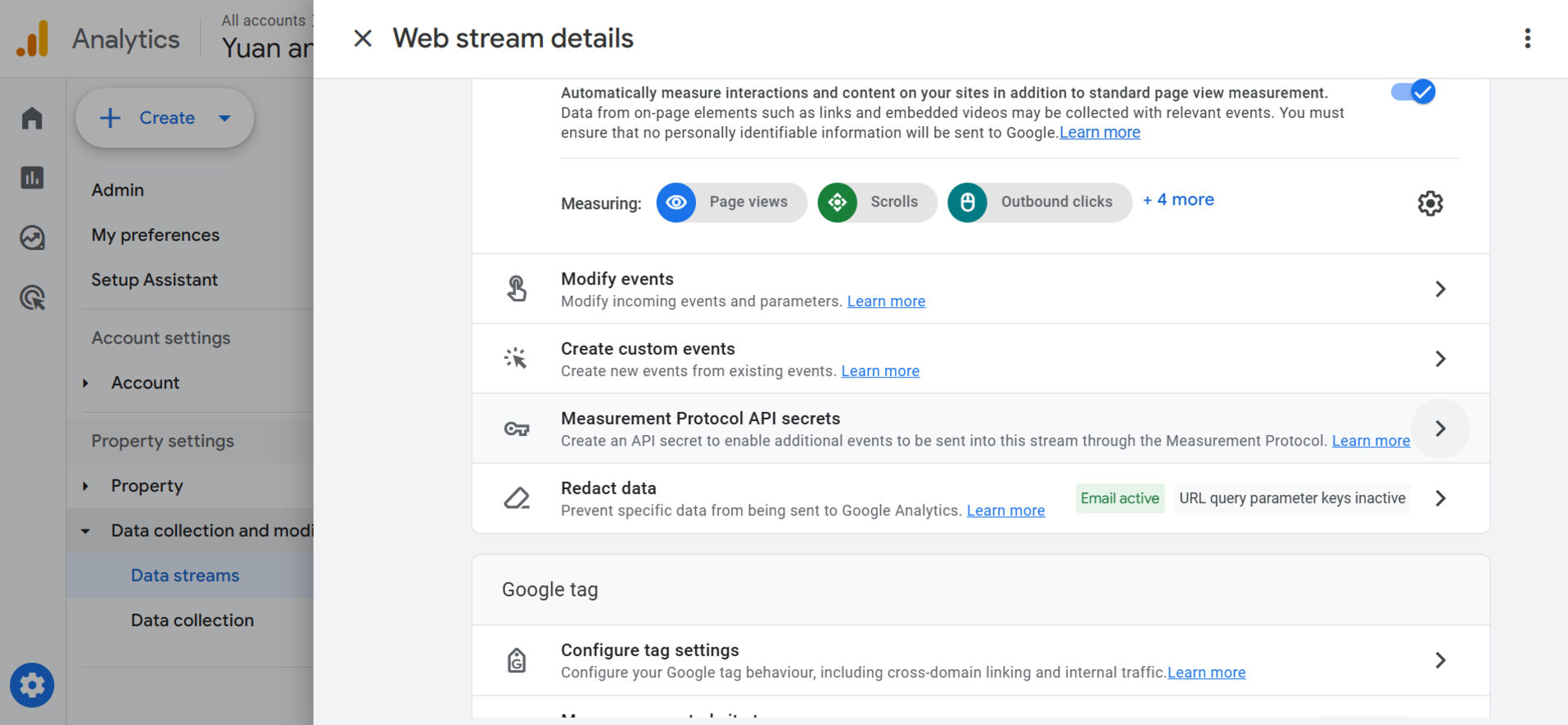
Step 2.1: Get Your Measurement ID
- Log in to analytics.google.com.
- Go to Admin → Data Streams.
- Select your Web Data Stream.
- Copy the Measurement ID.
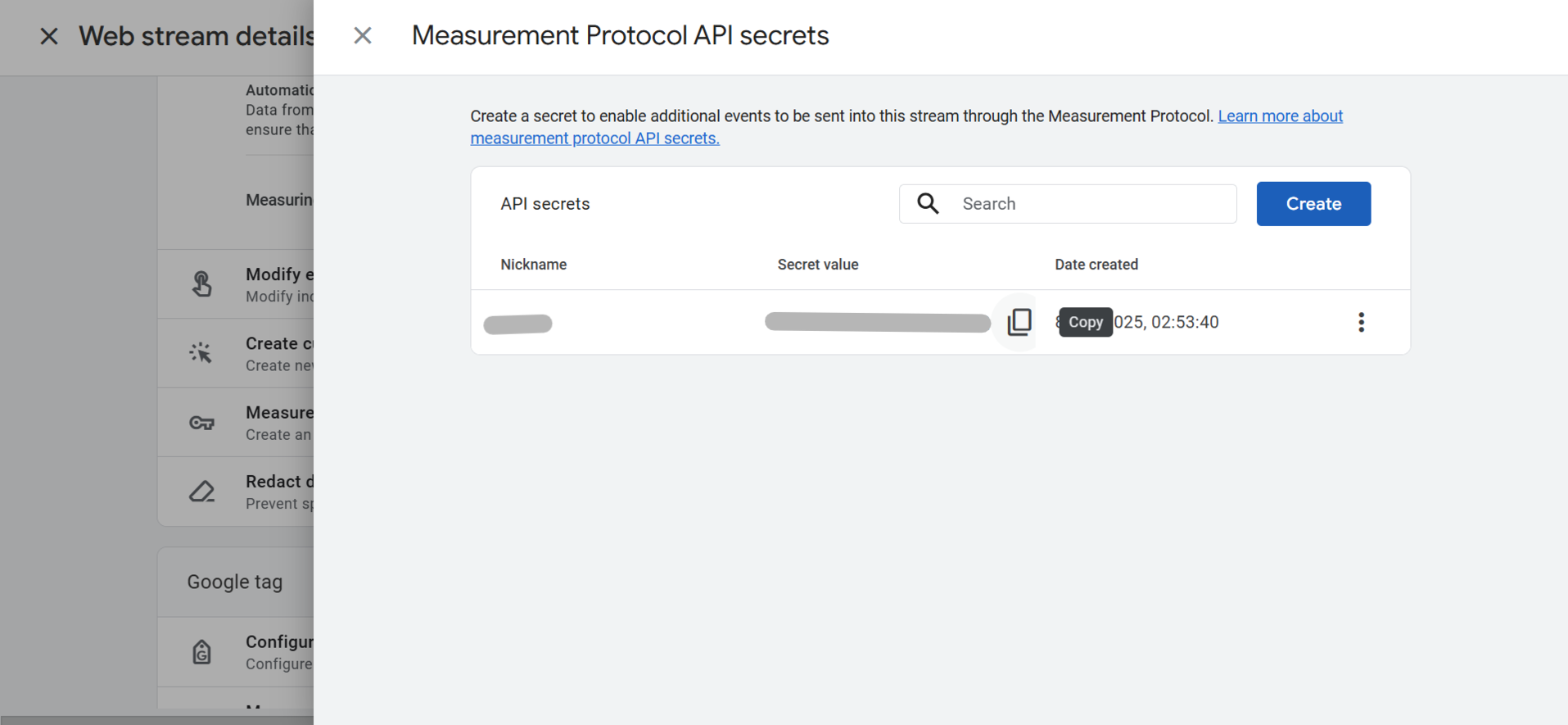
Step 2.2: Get Your API Secret
- Scroll to Measurement Protocol API Secrets.
- Click Create and name the secret.
- Copy and save the Secret Value.
Step 3: Choose a Push Mode
- Autopush – Automatic uploads.
- Manual – Upload manually.
- Both – Supports both modes.
- Click Save to complete the integration.
Important
- API Secret values cannot be viewed again once created.
- Ensure the Measurement ID matches your website property.
Ready to Track Calls in Google Analytics?
Start pushing call data into Google Analytics with TRUE Pulse.
Go to Integrations