Salesforce Integration with TRUE Pulse
Connect TRUE Pulse with Salesforce to automatically sync call details, improve attribution, and empower your sales teams with real-time insights.
Watch How It Works
See the Salesforce Integration in Action
Watch how TRUE Pulse connects with Salesforce and starts pushing call data in just a few simple steps.
Salesforce Integration Guide
Follow these steps to connect TRUE Pulse with Salesforce and start sending call details.
Step 1: Log in to Salesforce
- Ensure you are logged in to Salesforce in the same browser.
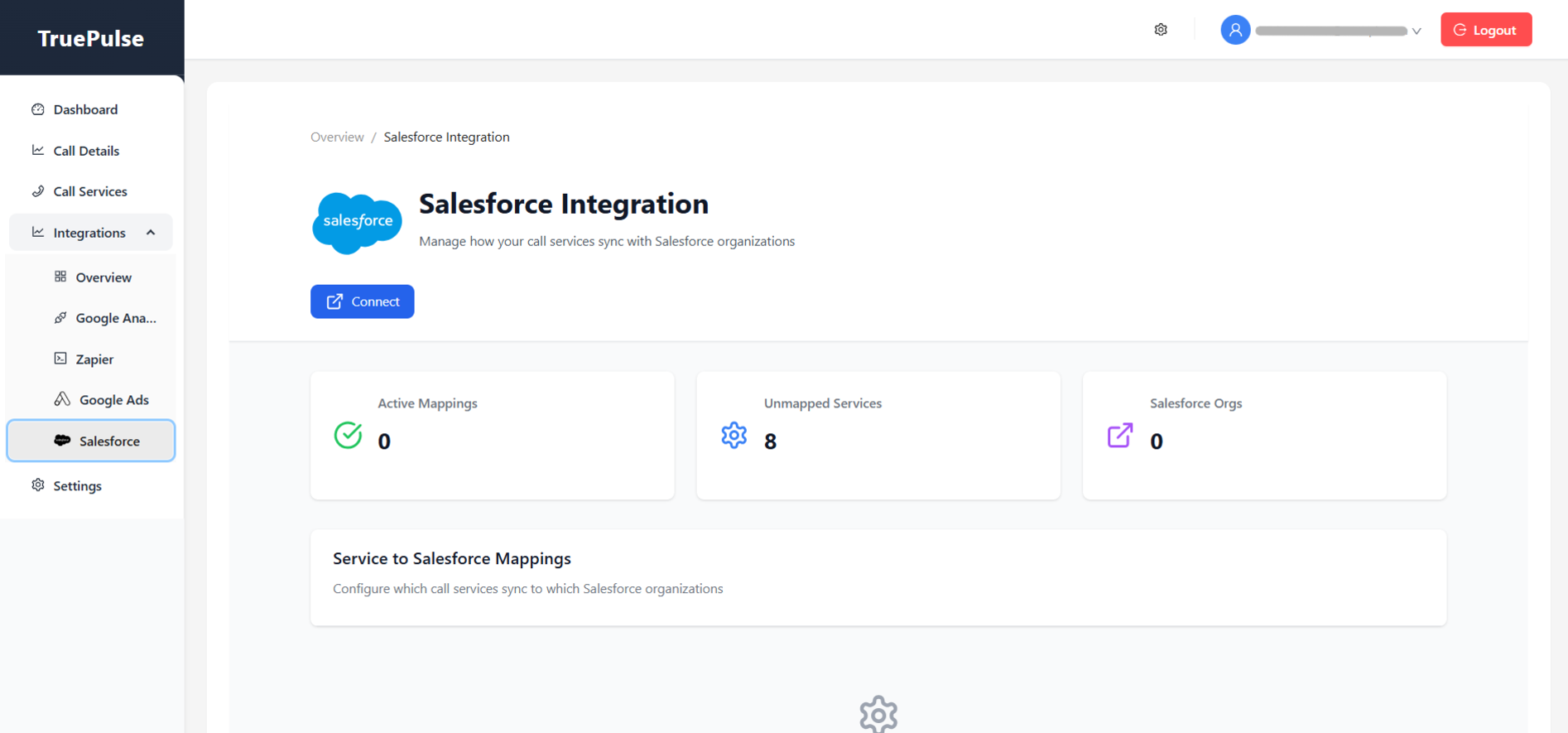
- In TRUE Pulse, go to Integrations → Salesforce.
Step 2: Initiate the Connection
- Click Connect.
- You will be redirected to Salesforce authorization.
Step 3: Authorize Access
- Click Authorize to grant required permissions.

Step 4: Return to TRUE Pulse
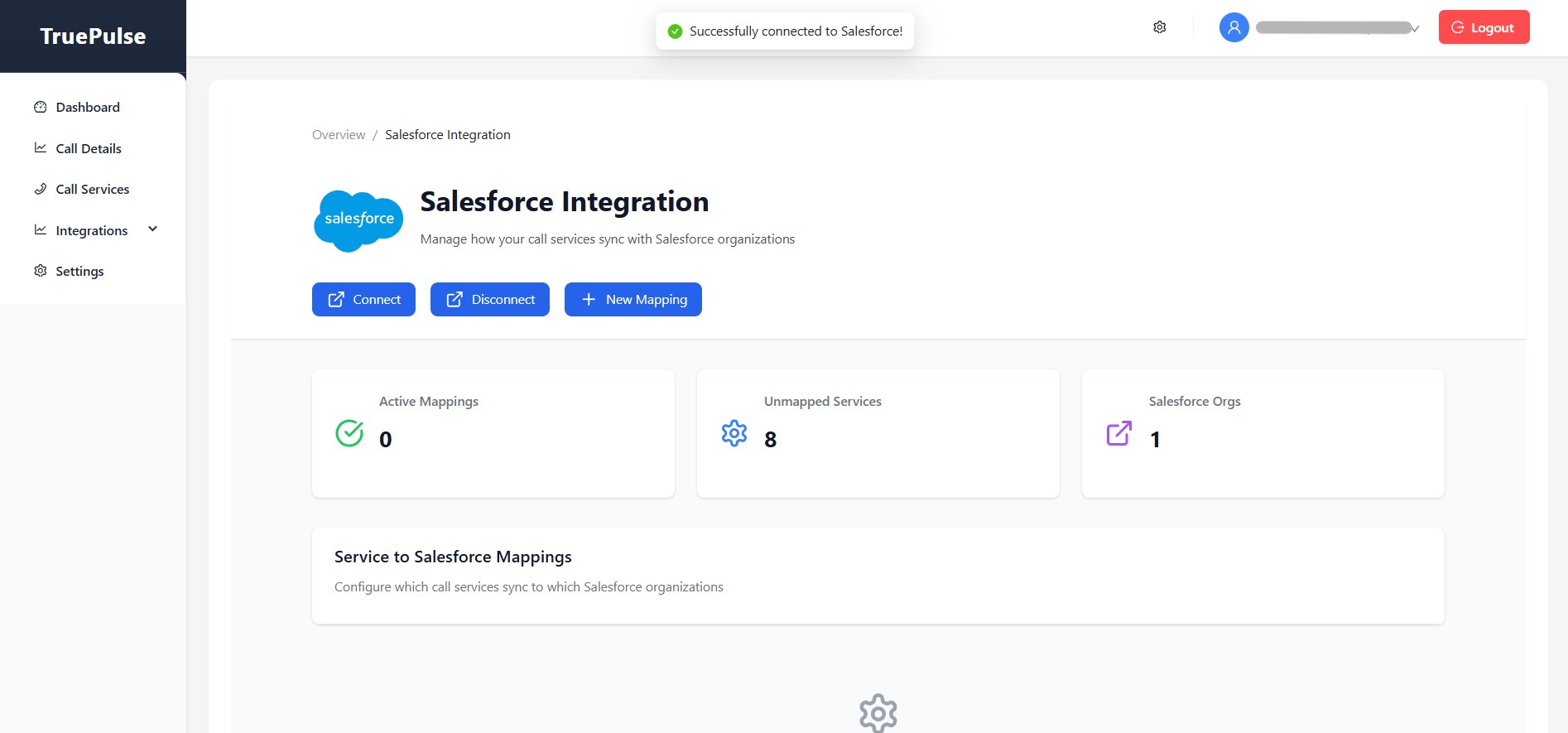
- You will be redirected back to TRUE Pulse automatically.
- A dedicated Salesforce object is created to store call details.
Step 5: Create a Mapping
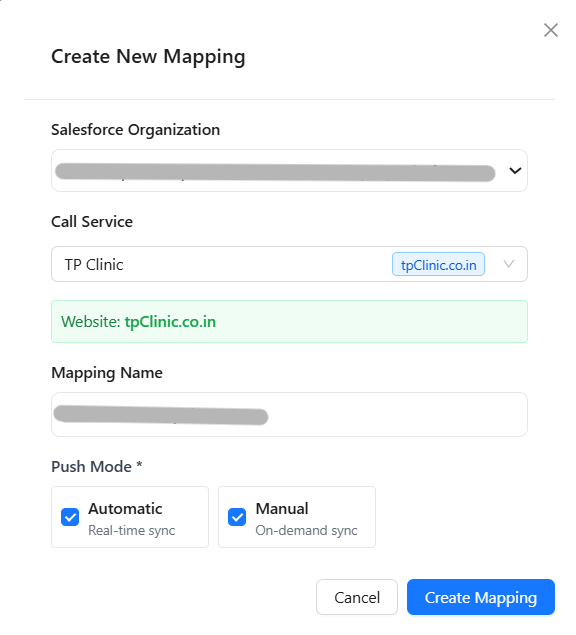
- Click + New Mapping.
- Select Salesforce Org and Service.
- Name your mapping.
- Choose a push mode: Automatic, Manual, or Both.
Important Notes
- Do not rename or modify the Salesforce object created by TRUE Pulse.
- Deleting a mapping stops data transfer immediately.
- Disconnecting Salesforce removes all mappings.
Ready to Connect Salesforce?
Start syncing call intelligence with Salesforce in minutes.
Go to Integrations